Connect Smarfle to ChatGPT
Ask ChatGPT about today's jobs, your customers and unpaid invoices, and let it add customers, notes and job requests for you. Smarfle's connector is an MCP server, which ChatGPT adds as a plugin.
How to connect
1. Add Smarfle as a custom MCP server in ChatGPT
In ChatGPT open Plugins (chatgpt.com/plugins), press Add and choose Add custom MCP server. Name it Smarfle, paste the address
https://www.smarfle.com/api/mcpunder Connection and leave Authentication on OAuth. Tick I understand and want to continue and press Create as a plugin.2. Sign in to Smarfle and approve
ChatGPT sends you to Smarfle. Sign in as the business owner or a manager, choose whether ChatGPT may also make changes, and press Approve and connect. You go straight back to ChatGPT.
3. Ask about your business
In a new chat type @, pick Smarfle and ask in plain words, for example What's on today's schedule?, Which invoices are still unpaid? or Find Jane Miller and show her address.
See what owners ask on the ChatGPT and Claude page. Using Claude? Connect Smarfle to Claude.
What ChatGPT can read
- Get business info. Your business name, time zone and today's date there.
- List jobs. Jobs for a day or a date range, by status or customer.
- Get a job. One job with its customer, service, schedule, address and price.
- Find customers. Search by name, email, phone or company.
- Get a customer. Contact details, address, status and tags.
- List invoices. By status (unpaid = sent or overdue), customer or job.
- Get an invoice. Line items, totals, due date and payment status.
- List services. The services you offer, with prices.
What it can change, if you allow it
- Add a customer. A new customer or lead (refused if the email is already used).
- Update a customer. Contact details, address, status or notes.
- Request a job. A job request your office confirms and schedules in Smarfle.
- Add a note. A private note on a customer or a job.
What it never does
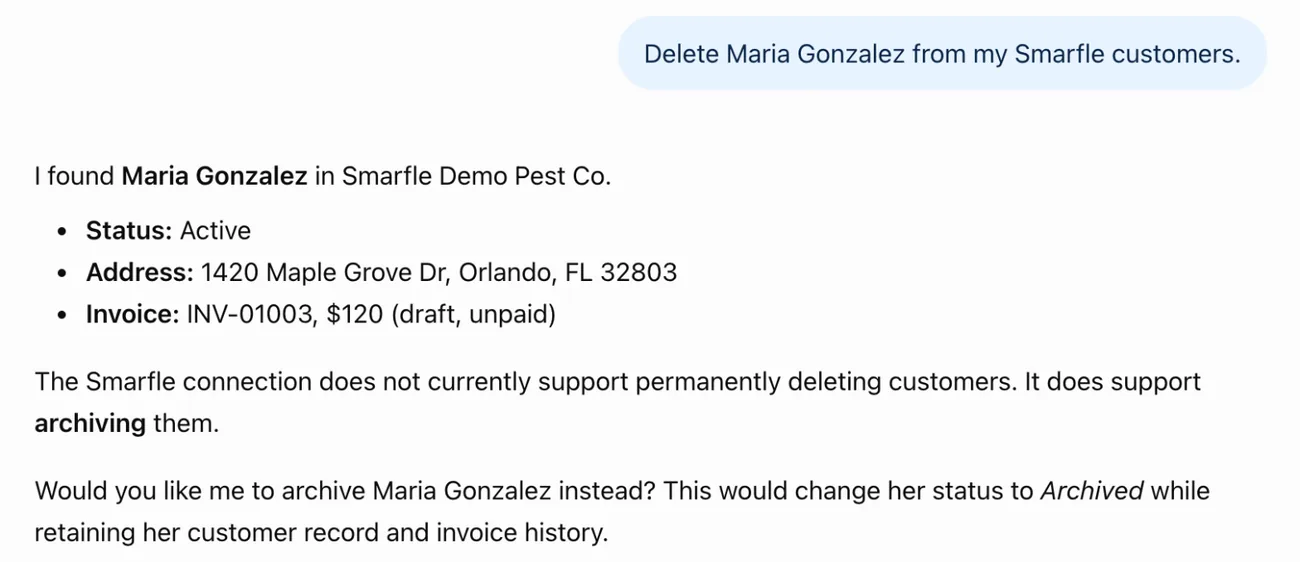
- It never deletes anything, never texts or emails your customers and never charges a card.
- It only sees the business that approved it. Job requests wait for your office to confirm them, like an online booking.
- It never sees your Smarfle password. Only owners and managers can connect it, and it stops working if that person leaves the business.
Price
Reading is free. Each change (a new customer, an update, a job request or a note) costs $0.003 from your Smarfle wallet, the same as the Smarfle API. It works during your free trial and on every paid plan.
Disconnect any time
- In Smarfle open Company Settings, then Integrations, then API keys, and press Disconnect next to the assistant. It stops reaching your data at once.
- You can also remove Smarfle in ChatGPT on the Plugins page.
Other AI assistants and developers
Any MCP client can connect to https://www.smarfle.com/api/mcp. It signs in with OAuth 2.0 (the client registers itself, then you approve it in Smarfle). Clients that send a header instead can use a Smarfle API key as the bearer token.
Questions: contact Smarfle or email founder@smarfle.com. Privacy: privacy policy.